Any long flight requires wind compensation to stay on course. Unfortunately, the calculations involved can be very tedious. Some pilots will choose not to make these corrections, instead flying "by the seat of their pants," but this leads to wasted time and fuel. FlightMath provides an easy means of obtaining this data with computer precision.
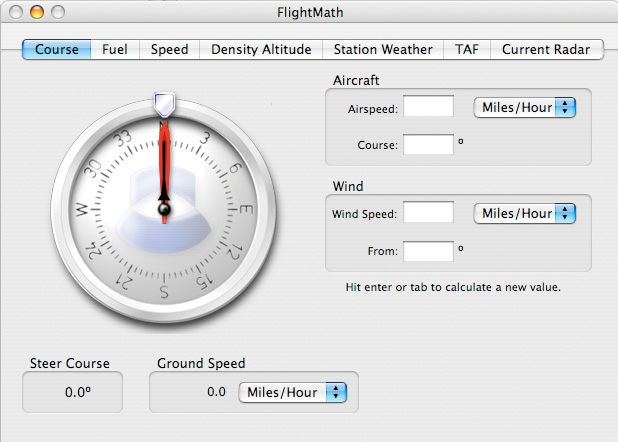
To make calculations, click on the Course tab at the top of the window. The window will look like this:
The light-blue tab near the perimeter of the dial is the wind direction (measured from). To change the wind direction, simply click the mouse on the outside edge of the dial. The light-blue tab will automatically move to that location. Holding down the mouse button will allow you to drag the light-blue tab and position it anywhere around the dial. The text field to the right of the dial labeled "From" will numerically display the direction indicated by the light blue tab. You may also change the wind's from direction by typing a direction in this field.
The large red indicator in the center of the dial represents the true course (the direction you want to go). Click anywhere within the dial's face to change its location. You can also hold down the mouse button to drag the dial. The "Course" text field to the right of the dial will show the true course in degrees. The Steer Course (the direction you'll want to point the plane) and the Ground Speed (the speed you'll track along the true course) will be updated in real-time and are displayed underneath the dial. You may also type in a value for the true course in the "Course" text field.
You must also input Airspeed and Wind Speed. Use the menus by the items to indicate the units you want to use; all conversions will be done automatically. To set these values, type the numbers into the respective "Airspeed" and "Wind Speed" text fields.
The units available for Wind Speed, Airspeed, and Ground Speed are Miles per Hour, Knots, and Kilometers per Hour. Note that all the values can have different units. The indicated Ground Speed will be in whatever units are selected in the menu directly to the right of the Ground Speed text, not the units indicated on Airspeed or Wind Speed.
The black indicator on top of the red true course arrow is the steer course indicator, and provides a graphical representation of the heading indicated next to Steer Course. Unlike the E6-B, where the operator is required to either subtract or add the deviation, FlightMath automatically gives you the direction at which you need to point the nose of the plane.
Ground Speed and Steer Course will be updated in real-time while other values are changed. While it is possible to enter a wind speed higher than the aircraft's airspeed, note that the ground speed may be negative.
In each of the menus that specify units, you may do a conversion by selecting one of the menu options preceded by a "->". This will automatically convert the value in the text field from the previously selected units to the units specified after "->". This feature is provided as an easy way to do conversions, but it does not effect wind computations. For example, you do not have to make sure all speeds have the same units, as FlightMath already does conversions.