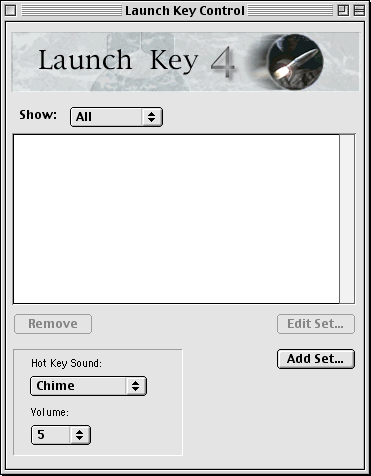
This window is divided into two logical areas. The scroll list shows the names of sets that you have created; modify it using the Remove, Edit Set, and Add Set buttons. The Show menu is new to Launch Key 4.0, and it allows you to see specific sets. You can now view all sets silmultaneously, global, those that are not application specific, or only those that are specific to an application. All applications that have been indicated as application specific to a set will be included in this menu. The lower area of the window is used to specify Launch Key's sound preferences. To have Launch Key play a sound when it detects a hot key press, select the desired sound (or "None" if you do not want one) from the Activation Sound menu, then set the desired volume (0 to 8) using the Volume menu.
To create a new set, click the Add Set button. The following dialog will appear:
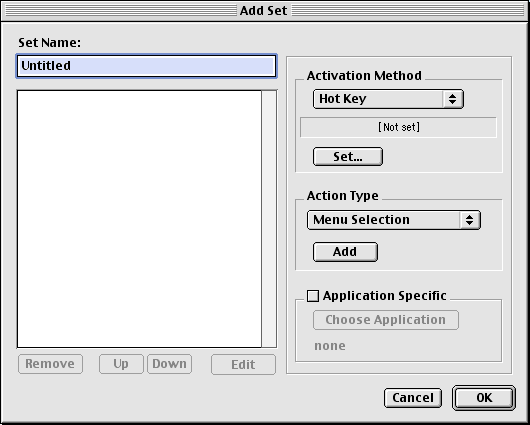
This is the dialog used to create a set. Start by entering a name for the set in the field labeled Set Name. The name can be anything you wish, but it can be no longer than 255 characters.
Next, assign an activation method for the set. You may choose from:
Next, you need to add actions to the set. As you add actions, they will be listed in the scroll list in the left section of the window. When you have multiple actions, Launch Key activates them in the order they are listed; you can modify their order by using the Up and Down buttons to move a selected action up one or down one, respectively. New actions are appended to the end of the list. You can delete actions by selecting them and clicking the Remove button, or modify them by selecting them and clicking the Edit button (note that you can only change the details--e.g., the text of a Text Type action--of an action, not the action type).
To add an action, first select the action type from the Action Type popup menu. The available action types are (click the name to see a full explanation):
When you have selected the type of action you want, click the Add button. Some action types require more information, which you will be prompted to enter. For instance, Text Block will ask you to type the text, and Switch to Application will ask you to select the application. Continue adding actions as desired.
Finally, after you've named the set, assigned an activation type, and added desired actions, you need to decide whether you want the set to be available only within a specific application or globally to all applications. By default, sets are available globally; to limit them to a particular application, click the Application Specific check box and you'll be prompted to select the application. You can turn this off by clicking the check box again, or select another application by clicking the Choose Application button.
When you are finished, click the OK button to add the set to your list.
Launch Finder Object
Type Text
[D2]
[D3]
[T1]
[T2]
Note: The above samples are for illustration only. The exact format will depend on your Mac's Date & Time settings.
Important: Launch Key creates text by simulating keystrokes. Some applications do not always check for keystrokes, and some characters will be skipped. Most applications will accept all keystrokes, however. If Launch Key is typing a block of text and you'd like it to stop, press cmd-period.
Do Key Combination
Post Message
Important: Launch Key must be running in order to activate at the specified time! To make sure Launch Key is running, check that the Stop Launch Key command in Control's File menu is enabled, and that the Start Launch Key command is disabled. Note that Control itself need not be running for activations to work.
Speak Message
Launch Key Pause
Select Menu Item
Switch to Application
Switch to Finder
Switch to Previous Application
Switch to Next Application
Put Macintosh to Sleep
Note: On those Macs that go completely to sleep, like PowerBooks and G4s, Launch Key will discontinue all activity once the machine is asleep, effectively halting set execution until you wake up your Mac.
Restart Macintosh
Note: System Restart actions should be the last action in a set.
Shutdown Macintosh
Note: System Shutdown actions should be the last action in a set.
Play Sound
Note: The volume you specify for the sound is relative to the system volume.
Quit All Applications
Use this option to have Launch Key activate any Finder object. This includes applications, documents, AppleScripts, and anything else that you can find in the Finder. When you add a Finder Object, you will be presented with a Navigation Services dialog from which to choose the object. Note that if you do not have Navigation Services installed then a standard dialog will be used instead.
Launch Key 4 can type blocks of text automatically. When you add a Type Text action, you will be presented with a dialog with a text field. You may type the text there or copy it in from another application. Launch Key can also type dates and times for you. For instance, if you want to have Launch Key write your address, you can include the current date. To add the date or time, simply include the date or time code in the text (for convenience, you may select the date or time from a popup menu and Launch Key will automatically insert the proper code). The available formats are as follows:
[D1]
Short Date: 1/1/00
Long Date: Saturday, January 1, 2000
Abbreviated Long Date: Sat, Jan 1, 2000
Time with seconds: 2:10:09 PM
Time with no seconds: 2:10 PM
Launch Key can also generate hot keys as well as accept them. For instance, you may want a specific hot key to quit all of your internet applications. You can use Switch to Application (described later) to switch to the application, and have Launch Key generate "Cmd-q" to quit the application. Any menu option with a Cmd-[key] option can be chosen using this feature. Since Launch Key simulates a keystroke, you can also dismiss a dialog by using Enter, esc, or cmd-period as the key combination.
If you want Launch Key tell you something, you can now have Launch Key inform you via the Notification Manager. Coupled with Launch Key 4's new specific time activation, you can use Post Message as a convenient reminder, so that you will never forget birthdays, meetings, or other important times ever again. Additionally, if you want Launch Key to display special instructions to the user, such as an important e-mail address or where to find the system administrator, you can include a Message in your Launch Key set.
This is almost identical to Post Message, except that it will speak the text instead of
bringing up a Notification dialog.
You can insert a pause into Launch Key with this plugin. Some applications do not accept input right away. If you launch your word processor and want to type text into a new window using the Type Text action, the first part of the text might not show up since the application does not start accepting input for the first few seconds. Adding a pause (in seconds) will ensure that the text block types properly.
This plugin will allow Launch Key to automatically select menu items from the Menu Bar. Just about any menu item can be selected, with the exception of submenu items. You can use Menu Selection to select a menu item you always wish you had a keyboard shortcut to, or as a step in an automated process. The possibilities are endless! When you add a Menu Selection, you will be presented a dialog with two menus. The first is the number of the menu you want selected counting left to right, where the Apple Menu is 1, File is 2, Edit is 3, and so on. Next, select the item you want selected, counting down, include separators, with the first command in the menu counting as 1.
This plugin brings the selected application to the foreground, as if you'd selected it from the Application menu. If the application is not already running, it will be launched first. (Note that the same task can be accomplished with the Finder Object type, but is slower in that case since the Finder must first be brought to the front.)
This will bring the Finder to the front, as if you'd selected it from the Application menu.
Brings the previous application to the foreground, as if you'd selected it from the Application menu. "Previous application" is defined as the program launched prior to the current program. For instance, if you launched Eudora then Anarchie and were in Anarchie, then this action would bring Eudora to the foreground.
This option brings the next application to the foreground, as if you'd selected it from the Application menu. "Next application" is defined as the next program launched after the current program. For instance, if you launched Eudora then Anarchie and were in Eudora, then this action would bring Anarchie to the foreground.
This action puts the Mac to sleep, as if you'd selected the Sleep command in the Finder's Special menu.
Restarts the Mac, as if you'd selected the Restart command in the Finder's Special menu.
Shuts down the Mac, as if you'd selected the Shut Down command in the Finder's Special menu.
This plugin allows you to play a sound, either one of Launch Key's or a system sound.
This plugin allows you to quit all applications.
| Go back one page. | Go forward one page. |