Getting Started
SUPERLOCK PRO ADMIN
Overview
Users
Adding Users
Editing Users
Removing Users
Duplicating Users
Client Preferences
Text Items
Invalid Logins
Username
Screen Saver
SUPERLOCK PRO CLIENT
Overview
Logging In
Tips
Registering SuperLock Pro
Uninstalling SuperLock Pro
Frequently Asked Questions
Contacting TriVectus
Technical Information
Credits

Editing Users
Special Note: In the unregistered version of SuperLock Pro, the super-admin user cannot be edited. This presents a security hole since anyone knowing the default name and password can log in. This limitation is removed in registered versions.
To edit a user already on the users list, select the user's name and click the Edit User button (shortcut: type an E. The following window appears:

This is the Edit User dialog. It consists of four areas:
 Basic User Information
Use these two text fields to change the username and password. The password field may be left blank, but a username must be assigned, and it must be unique among all users.
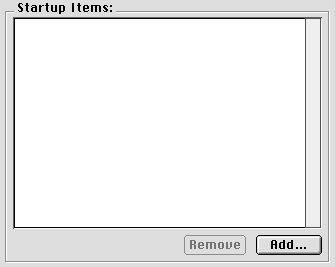 Startup Items
Each user can have associated Finder objects (applications, folders, AppleScripts, volumes, etc.) that are opened in the finder when they log in through Client. Click the Add button to add items to the list, and the Remove button to delete them. Navigation Services will be used when adding items if it's available.
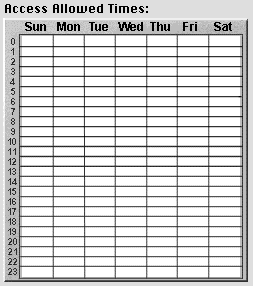 Access Allowed Times
Use this area to assign the time blocks during which a user can log in. The grid is labeled on the horizontal axis with the days Sun through Sat, and on the vertical axis with the hours 0 through 23. To enable login during a block, click the box corresponding to the day and hour of the block. For instance, to allow login from 09:00 to 09:59 (9 to 9:59 AM) on Wednesday, click the box that's in the Wed column and the 9 row. If you change your mind, click again to disable the block. To enable a range of blocks, click and drag the pointer; disable a range of blocks by option-clicking and dragging the pointer.
When time blocks are enabled--meaning a user can log in during that hour--they are darkened. When a block is disabled, it is white.
Note that all time blocks are fixed in the enabled state for the super-admin user, to ensure that he or she can log in any time.
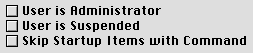 User Options
User is Administrator
Check this to allow the user to log in to Admin and edit normal users.
Note the when editing the super-admin user, this check box is replaced with [User is Super-Administrator] to reflect that fact. The status of the super-admin user cannot be changed.
User is Suspended
Check this box to temporarily disallow the user from logging in, regardless of all other settings.
Note that the super-admin user cannot be suspended, to ensure that he or she can log in any time.
Skip Startup Items with Command
Check this box to allow the user to hold down the command key in order to skip opening startup items when they log in through Client. See Logging In under SuperLock Pro Client.
When the user has been edited as desired, click the Save button to save changes. If you change your mind and decide not to alter the user, click the Cancel button.