Getting Started
SUPERLOCK PRO ADMIN
Overview
Users
Adding Users
Editing Users
Removing Users
Duplicating Users
Client Preferences
Text Items
Invalid Logins
Username
Screen Saver
SUPERLOCK PRO CLIENT
Overview
Logging In
Tips
Registering SuperLock Pro
Uninstalling SuperLock Pro
Frequently Asked Questions
Contacting TriVectus
Technical Information
Credits

Log Preferences
SuperLock Pro can track several things in its log file. To set the log preferences, click the Log Prefs button. The following window will appear:
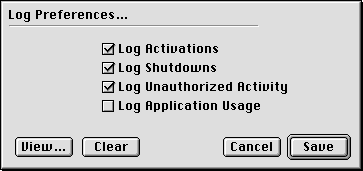
This is the Log Preferences window. There are four check boxes which toggle various logging functions:
- Log Activations: Records when Admin or Client is activated, and by whom.
- Log Shutdowns: Records when a shutdown occurs. Note that a shut down is recorded whenever Overseer is quit. Usually, this will coincide with a real shutdown; however, a shutdown will also be recorded when Overseer is quit using Admin.
- Log Unauthorized Activity: Records invalid attempts to log in to either Client or Admin, including such cases as a suspended user trying to log in.
- Log Application Usage: Records when applications are launched and quit. Note that Overseer must be running for this function to work.
To view the log's contents, click the View button. The following window will appear:
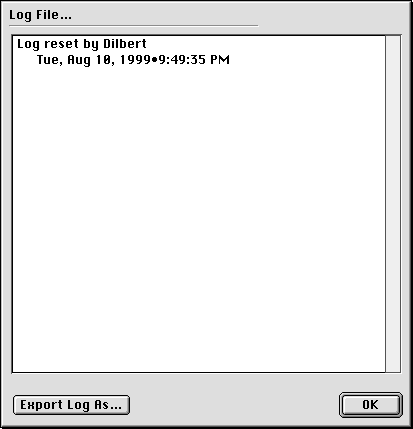
This is the Log File window. In the center of the window are the contents of the log file. Each entry consist of one line, followed by one or more indented lines containing information specific to that entry.
While in this window, you can also export the log file for use with another application. To do so, click the Export Log As button. You will be prompted for a location at which to save a copy of the log file. If Navigation Services is available, it will be used (as will MacLink Plus to allow export to a number of formats). When you're finished viewing the log file, click the OK button to return to the Log Preferences window.
To clear the contents of the log file, click the Clear button and confirm the warning. Whenever the log is cleared, that fact is noted in the newly-cleared log along with the username of the person logged in when the log was cleared.
Because the log file can quickly grow quite large (especially if application usage logging is enabled), it is recommended that it be cleared regularly to avoid it getting too large.
When the log preferences have been configured as desired, click the Save button to save changes or the Cancel button to return to the main window without saving changes.
Note: Clicking the Cancel button here does not reverse the log file being exported or cleared.